Photography Tips
Free Preview: Remove People From Listing Photos Fast With AI
Effortlessly create pristine property listings by removing unwanted people from your photos using AI, ensuring a professional and appealing presentation.
By Hospitality Lens · · 13 min read
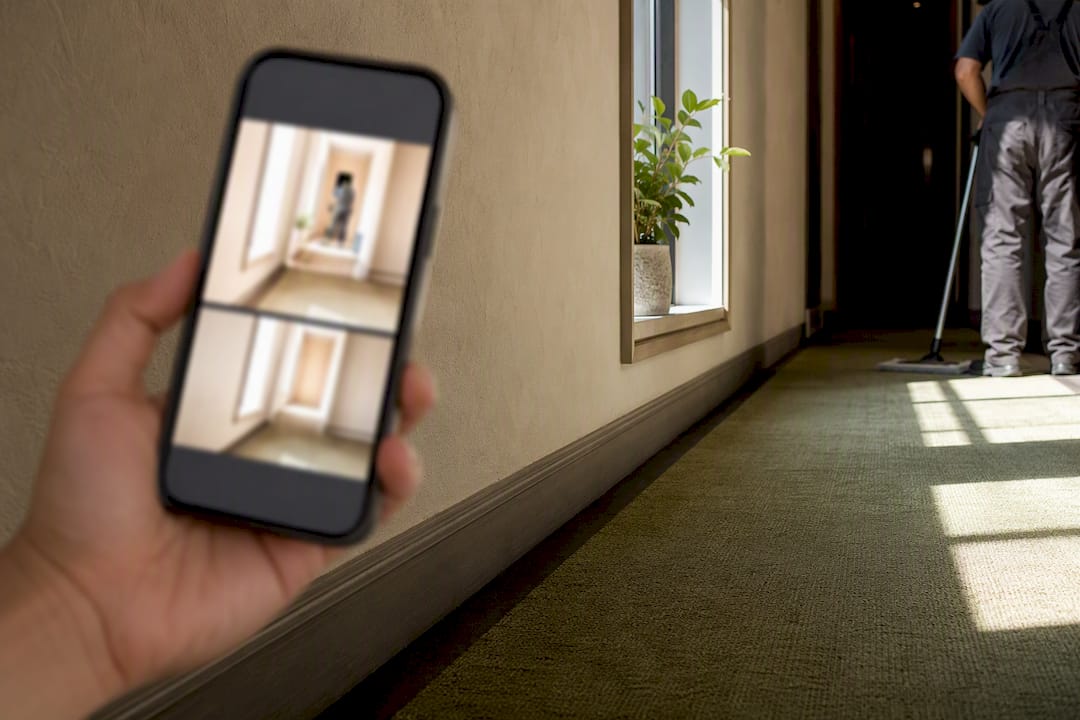
Yes, AI can remove people from photos in minutes, and for most casual shots it works well. The fastest path is an automatic online tool: upload the photo, mark or describe the person, let the AI generate a fill, then refine. Complex backgrounds, crowds, or listing-quality images often need extra refinement, manual touch-up, or a managed service like HospitalityLens.
TL;DR:
- Automatic online tools are best for quick removal of simple backgrounds but struggle with complex scenes, requiring manual refinement.
- Using higher resolution, unobstructed photos with consistent backgrounds results in cleaner AI-generated removals and fewer artifacts.
- Professional editing or managed services like HospitalityLens provide more precise results for high-stakes or complex images, especially for listings or print.
- Removing incidental people from property photos is generally acceptable, but edits that alter the story or imply false amenities are ethically and legally questionable.
- Permission is essential when editing images for commercial use, especially when identifying individuals, to avoid legal issues and misrepresentation.
Table of Contents
How Do You Remove a Person From a Photo?
You don’t need editing experience to pull this off. The workflow is the same whether you’re using a browser tool, a phone app, or a desktop editor. Only the interface changes.
- Start with your best original. Choose the highest-resolution version of the photo, not a compressed copy pulled from a text message or social app, and crop tight to the area you care about.
- Upload it to your editor. Browser tools and phone apps both work; just make sure the file format is supported (JPG, PNG, and HEIC are standard).
- Select the removal tool. Most platforms give you a brush, a smart selection box, or a text prompt where you describe who to remove.
- Generate the fill and zoom in. Check the result at 100% zoom, not the shrunken preview, because artifacts hide at small sizes.
- Refine what’s off. Switch to a smaller brush, use a clone or heal tool for repeating patterns, or rerun the removal with a slightly different mask.
- Export the final image. Save a full-resolution copy, not a compressed export, if you plan to print it or upload it to a listing.
Tools like Adobe Photoshop’s Photo Eraser follow this exact structure: select or brush over the unwanted element, and the tool blends surrounding pixels into a natural fill.
Which Method Fits Your Situation: App, Website, or Desktop Editor?
Not every removal job calls for the same tool. The right choice depends on how much control you need and what the final image is for.
Automatic online AI tools are the fastest option and require the least effort. You upload, click, done. Services like Adobe Firefly’s Generative Remove let you brush over a person and get a context-aware fill without touching a single manual tool, and lightweight sites like EditThisPic go a step further, letting you type something like “remove the person on the right” and get a result back in seconds, sometimes with a free edit included. These shine on simple backgrounds: a beach, a plain wall, a clear sky. They’re the right call for a quick social post or a photo you’re sending to family.
Phone apps trade some quality for convenience. They’re built for editing on the move, which makes them a natural fit for travel photos where you want a photobomber gone before you post, but the masking controls tend to be limited compared to a browser tool.
Desktop editors and advanced AI give you the most control. You get finer brush control, layer-based corrections, and better handling of complex scenes with overlapping objects or crowds. This is the category to reach for when the photo is going somewhere that matters: a magazine spread, a print, or a professional deliverable.
Match the tool to the stakes:
- Sharing on social media: an automatic online tool or phone app is enough.
- Refreshing a property listing photo: automatic tools can work for simple scenes, but complex ones benefit from a managed service.
- Producing a professional or print deliverable: a desktop editor or a service built for accuracy makes more sense.
How Can You Get a Cleaner Removal Result?
Most bad removals come down to the photo itself, not the tool. Backgrounds with visible, consistent texture behind the subject, such as a clear sky, a plain wall, or grass, give AI something reliable to reconstruct. Crowds, overlapping objects, and busy patterns are where automatic fills tend to fall apart, since the AI needs visible background and consistent texture to fill convincingly.
A few habits make a real difference before and after you hit generate.
- Before removing: shoot or select photos where the background behind the person is visible and not obstructed by other objects.
- While masking: use a brush sized to the subject, slightly overlap the edges of the person, and avoid marking anything you actually want to keep.
- After the fill generates: zoom in and check the seams, especially where patterns repeat (tile floors, brick, fences), since that’s where inpainting tends to smear.
- If a fill looks wrong: try a second pass with a different mask shape, shift your crop slightly, or fall back to manual clone/heal tools for the stubborn section.
- If nothing works cleanly: stop fighting the auto-fill and either do the touch-up manually or send it to a managed service that can fix it by hand.
Pro Tip: When a tool lets you describe your target in text, be specific: “the man in the red shirt standing far left” performs far better than “person” in a crowded scene, because the AI has less guessing to do.
One more thing worth saying plainly: only remove or share images you actually have the right to edit. If someone else took the photo, or if it includes people who haven’t agreed to appear in a public listing, get permission before you publish.
When Should You Use a Professional Photographer Instead of AI?
AI removal is excellent for quick, low-stakes fixes: a stranger in the background of a vacation photo, a photobomber in a family shot. It is not built to replace what a photographer sees on location. A professional shoot still wins when a listing needs new angles, accurate architectural lines, or staging that only a person standing in the room can judge correctly.
That’s the gap a managed service is built to fill. It costs less and moves faster than booking a new shoot, but it gives you more consistency and quality control than a one-off app edit. HospitalityLens works from your existing phone photos, cleaner-taken shots, or older listing images and fixes lighting, perspective, clutter, and unwanted people without inventing rooms or features that aren’t there.
Free watermarked preview. Pay only if you like it. No card is required to create the free watermarked preview. See current pricing for unlocks, one-time packs, and subscriptions.
Choose based on three things: your budget, how many images you need done at once, and how important dead-on realism is for that specific listing.
When Is It Appropriate to Remove Someone From a Photo?
Context decides whether removing a person is a reasonable edit or a misleading one. A vacation photo with a stranger walking through the frame, a family portrait with a photobomber, or a property listing photo with a cleaner or maintenance worker caught mid-task are all common, low-stakes cases. Nobody’s identity, story, or consent is meaningfully affected by cleaning those up.
The picture changes when the person being removed is central to the photo’s meaning, not incidental to it. Erasing someone from a group photo to rewrite who was present, removing a person from a news or documentary image, or editing someone out of a shared memory without the other people in that photo agreeing to it all cross into questionable territory. The technical process is identical. The intent behind it is what changes.
For property and hospitality photos specifically, removing a passerby, a staff member, or a previous guest who happens to be in frame is standard practice and doesn’t misrepresent the property itself, as detailed in this hotel check-in process workflow. What crosses the line is using removal (or any edit) to imply a room, view, or amenity that doesn’t exist. HospitalityLens draws that line deliberately: edits stay truthful to the real property, and people or clutter get cleaned up without inventing anything that wasn’t there.
A simple test: if removing the person changes what a viewer believes happened, who was there, or what they’re paying for, get a second opinion before you publish it.
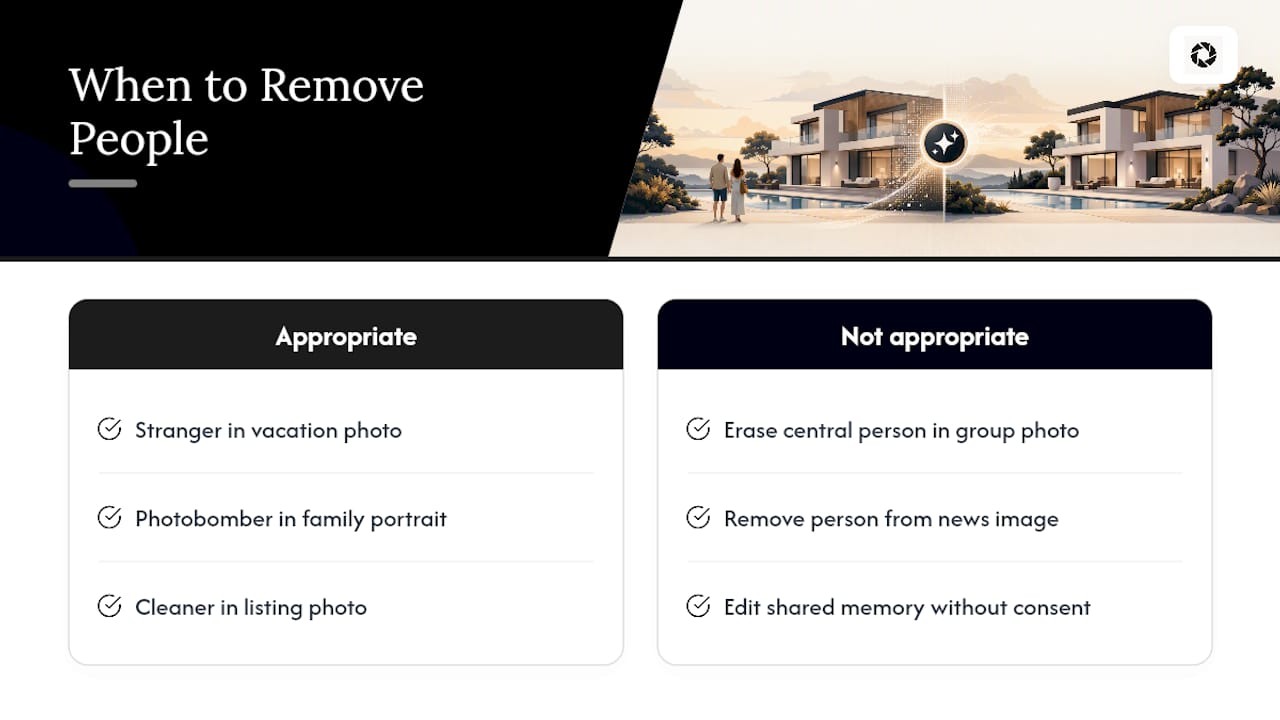
What Are the Legal and Ethical Limits of Removing People From Photos?
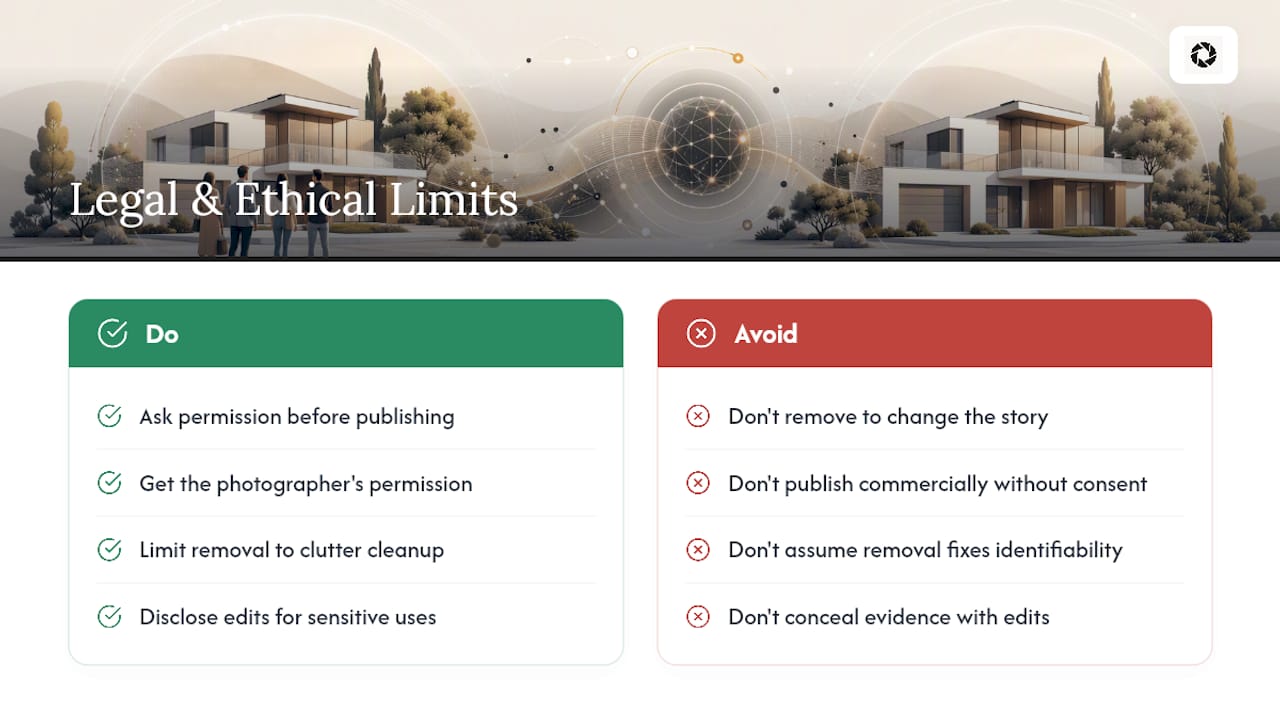
Removing a stranger from your own vacation photo carries almost no legal risk in most everyday situations. Removing someone from a photo you’re going to publish, sell, or use commercially is a different question, and it depends heavily on consent, ownership, and what you’re implying the photo shows.
Portrait and likeness rights vary by state and country, but the underlying principle is consistent: you generally need permission to publish an identifiable person’s image, especially for commercial use, and removing them doesn’t automatically solve that problem if other people in the photo are still identifiable and haven’t agreed to appear either. If you didn’t take the photo yourself, you also need the original photographer’s permission to edit and redistribute it, since copyright typically sits with whoever pressed the shutter.
The ethical question sits alongside the legal one. Editing a photo to remove an inconvenient detail is different from editing it to remove a person to change the story the photo tells, and the difference matters most in journalism, real estate marketing, and anything used as evidence. For hospitality and rental listings, the safer standard is to treat removal as clutter cleanup, not narrative control: take people out because they weren’t meant to be in the shot, never to misrepresent the space, the amenities, or who was actually there.
When in doubt on a commercial or public-facing image, the simplest move is to ask before you publish, not after.
A Note From the HospitalityLens Team
We see the same problems on repeat: a dark hallway shot on a phone at checkout, a slightly crooked living room photo, a cleaner caught mid-frame changing sheets. None of that means the photo is unusable. It means it needs a fix, not a reshoot.
Most edits we handle involve exactly this kind of cleanup: correcting lighting and perspective, clearing clutter, and removing people who wandered into frame. You get two revisions on a purchased photo, three if you’re on a subscription, so there’s room to get it right without starting over.
Try one photo free before you commit to anything larger. It’s the fastest way to see whether your existing photos are further along than you think.
— The HospitalityLens Team
How Do You Try HospitalityLens for Your Listing Photos?
Free watermarked preview. Pay only if you like it. No card is required to create the free watermarked preview. See current pricing for unlocks, one-time packs, and subscriptions.
Beyond that first photo, the pricing scales with how many listings you’re managing. One-time packs run at decreasing prices per photo depending on volume, each with two revisions built in. If you’re refreshing photos on an ongoing basis, monthly subscription tiers start at 10 photos for $49 and drop to $2.99 per photo at the 100-photo tier, each with three revisions and the option to buy extra photos at your tier’s rate. Whatever you pay for that first $12 preview gets credited toward a pack or subscription if you upgrade afterward.
The fastest way to see where you stand is to try the free preview yourself and compare it against your current listing photos before deciding what to do next.
FAQ
Can AI Actually Remove a Person From a Photo Convincingly?
Yes, for most photos with a clear, consistent background. Crowds, overlapping objects, and busy patterns are where automatic tools tend to leave visible artifacts that need manual refinement.
What’s the Fastest Free Way to Remove Someone From a Photo?
An automatic online tool or text-prompt based remover is fastest. Some services, like EditThisPic, let you describe who to remove and offer a free edit allowance.
Do I Need Photo Editing Skills to Remove a Person?
No. Modern brush-based and text-prompt tools, including Adobe Firefly’s Generative Remove, are built for people with zero editing background.
When Should I Use HospitalityLens Instead of a DIY App?
Use a managed service like HospitalityLens when the photo is going on a booking platform or listing site and needs consistent, truthful quality across multiple images rather than a one-off edit.
Is It Legal to Remove a Person From a Photo I Plan to Publish?
It depends on consent and context; publishing an identifiable person’s image commercially generally requires their permission, and removing them doesn’t automatically resolve rights issues for other people still in the frame.
Why Do Some Removals Leave Weird Blur or Artifacts?
Artifacts usually show up when the background behind the removed person is complex, occluded, or has repeating patterns the AI struggles to reconstruct; zooming in and refining with clone or heal tools usually fixes it.
Recommended