Photography Tips
sRGB vs Adobe RGB for Listings: 35% vs 50%, Yet sRGB Wins
For consistent, vibrant listing photos across all screens and platforms, prioritize sRGB to ensure your property's true colors shine.
By Hospitality Lens · · 14 min read

For most listing and web photos, sRGB is the safe default, and it is the space booking platforms and MLS systems expect. Adobe RGB earns its place only when you have a color-managed print workflow or a lab that supports it. In both cases, a calibrated monitor and a proper conversion matter more than the space you pick.
TL;DR:
- Export listing photos as sRGB with the profile embedded, and match each platform’s dimensions and file limits; Redfin recommends 2048x1365 JPEGs.
- Adobe RGB captures more saturated cyan greens, but most screens cannot display its full range; reserve it for print workflows that manage color.
- Convert files to sRGB rather than assigning a profile, then soft proof cyan green areas and embed the profile before export.
- Calibrate monitors to D65 and gamma 2.2, then check exports on an ordinary phone and laptop to catch color shifts viewers may see.
HospitalityLens
Keep Listing Colors Looking True
HospitalityLens enhances property photos with careful color correction while preserving the real property, helping teams prepare images for their listings.
Enhance a property photoTable of Contents
What color spaces, gamut, and ICC profiles mean in practice
A color space is a defined set of colors a file can describe. Its gamut is the range of colors inside that set. A narrow gamut cannot hold the most saturated colors a wider one can, so the same pixel numbers can mean slightly different colors depending on the space.
An ICC profile is the label that tells software and screens how to read those numbers. Without it, a browser or app guesses, and your warm living room can shift toward orange or flatten out.
- Color space: the rulebook for what each pixel value means.
- Gamut: how many colors that rulebook can describe.
- ICC profile: the embedded tag that makes the rulebook travel with the file.
- Working space vs output profile: the first is what you edit in, the second is what you deliver in.
Both sRGB and Adobe RGB reference a D65 white point, and both are output-referred spaces. The difference is how far they reach, which the next section covers.
How sRGB and Adobe RGB differ, and what that costs you
sRGB is the industry standard defined by IEC 61966-2-1, built so colors look consistent across monitors, printers, and browsers. Cambridge in Colour notes that it encompasses approximately 35% of the visible color gamut specified by CIE, while Adobe RGB (1998) covers roughly 50%.
sRGB covers about 35% of visible colors, Adobe RGB about 50% according to Cambridge in Colour. That extra reach sits mostly in saturated cyan-greens, which matters for pools, foliage, and teal accents, and less for beige rooms.
The wider space was designed to better match many CMYK printing systems, with gains in cyan-green midtones and green shadows. In practice:
- Adobe RGB can hold saturated cyan-greens that sRGB clips.
- Most displays cannot show the full Adobe RGB gamut, so you may edit colors you cannot preview.
- Viewers on typical screens see an sRGB-ish version regardless of what you worked in.
- A wide-gamut file shown without color management often looks dull and flat.
The working rule: use Adobe RGB only when your output will actually use the wider gamut. If it will not, the extra range adds risk and steps without adding anything a guest can see.
How to choose by output: web, client delivery, and print
Match the space to where the image ends up, not to what sounds more professional. Some photographers over-complicate workflows by using wide gamuts with no wide-gamut output, which adds conversion steps and risk of degradation.
- Online use and listing platforms: export sRGB with the profile embedded. Redfin, for example, recommends a 2048x1365 JPEG with an sRGB color profile to render consistently and avoid color shifts or rejection.
- Client delivery with no stated requirement: deliver sRGB. It is the most predictable on whatever device the client opens it.
- Print lab or client that asks for Adobe RGB: use it only if your pipeline is color managed end to end and the lab can use the wider gamut.
- RAW editing: a wide working space is fine for editing, as Have Camera Will Travel explains, as long as you convert to the destination profile and proof before delivery.
- Bit depth: if you routinely work in a wide gamut, prefer 16-bit files, since Adobe RGB allocates bit depth differently.
How to convert and export without clipping or color surprises
The most common mistake is assigning a profile when you meant to convert. Assigning relabels the numbers and changes the look. Converting recalculates them so the look is preserved as closely as the destination allows.
In Photoshop, use Edit > Convert to Profile. Adobe’s community guidance points out that this gives you control over rendering intent and black point compensation that automatic “Save for Web” conversions may not expose. Eizo adds that perceptual or relative colorimetric intents prevent abrupt clipping, and that Adobe RGB to sRGB is never perfectly lossless.
- Pick perceptual to compress the whole range smoothly, or relative colorimetric with black point compensation to keep in-gamut colors exact.
- Soft-proof against sRGB before exporting, and watch for out-of-gamut warnings.
- Convert to sRGB, embed the profile, then check dimensions and the platform’s file size limit.
- When a conversion needs an intermediate step, the ICC’s guidance on rendering intents recommends media-relative colorimetric with black point compensation.
Pro Tip: Compare the soft proof against the original on a cyan-green area like a pool or lawn first. That is where Adobe RGB to sRGB clipping shows up fastest.
How to calibrate your monitor and preview what guests will see
Calibration matters more than the working space you choose. Using a colorimeter to calibrate to gamma 2.2 and 6500K gives you a predictable editing environment whether you work in sRGB or Adobe RGB.
- Target: D65 (6500K) and gamma 2.2 for web and screen delivery. D50 can suit print proofing but makes the screen look warmer and is less convenient for most people.
- Device for most users: a Datacolor SpyderPro is sufficient for most IPS and VA monitors.
- Device for OLED, HDR, or wide-gamut screens: the same source recommends a Calibrite ColorChecker Display.
- No wide-gamut display: switch to an sRGB preview mode or soft-proof to sRGB before every export.
For listing work, a high-quality sRGB display is often more practical, because your edits then match what buyers and guests actually see.
A pre-upload color checklist for property teams
Run this before any photo goes to a listing. It takes a few minutes and prevents most of the color complaints we hear about.
- Shoot RAW when you can for more white balance and exposure flexibility. If you shoot straight-to-web JPEGs, set the camera to sRGB.
- Edit on a calibrated monitor, and fix casts and inconsistent whites first. Our workflow for color casts and our note on keeping white walls consistent cover the common cases.
- Convert final exports to sRGB with the profile embedded.
- Match each platform’s resolution and format specs, as outlined in our guide to hospitality image standards.
- Open the files on an uncalibrated phone and laptop to approximate the guest’s view, and fix anything that looks off.
- If you have dozens of images to bring into line, consider a managed enhancement rather than hand-fixing each one.
What we see in listing photos, and when outsourcing makes sense
Common color problems in listing photos include casts from mixed lighting, white balance that drifts from room to room, and oversaturated uploads that look different on every platform. Consistent sRGB exports can help reduce color surprises across platforms. When you have many images to align quickly, or no time to calibrate and proof each one, handing the job to a managed workflow is the practical choice.
How color profiles change the way guests see a rental
Guests judge a rental by its photos before they read a word. A missing or wrong profile changes how those photos feel. Warm wood can turn orange, a white bedroom can read gray or yellow, and a calm blue accent wall can look electric. None of that is inventing anything, but it is still misleading, because the guest arrives at a different room than the one they saw.
sRGB protects you here because it is the baseline almost every phone, laptop, and booking site is built around. The listing photo is emotional before it is rational, so predictable color supports trust. When the lobby on screen matches the lobby at check-in, nothing feels off.
Wide-gamut files cause the opposite problem. If an Adobe RGB image loses its profile, or a viewer ignores it, saturated colors look muted and flat. A cyan-green pool becomes a dull teal, and the photo that looked vivid in your editor looks tired on a guest’s screen. You cannot ask guests to switch their color settings, so you edit for the screen they have.
Consistency across a portfolio matters as much as accuracy in a single image. If one property looks cool and clean and the next looks warm and yellow, guests notice, even if they cannot say why. Using one color space and one calibration target for every property removes that variable, and it makes later refreshes far easier to match to the earlier shots. Most color complaints trace back to mixed workflows, not to the camera.

How color profile choice affects file size and load times
The color space itself has little effect on file size. A JPEG’s size is driven mainly by pixel dimensions, compression quality, and image detail, not by whether it is tagged sRGB or Adobe RGB. We do not have a published benchmark that isolates profile choice and its effect on load time, so we will not give you a number for it.
What does matter is the embedded profile and the export settings around it. A full ICC profile is stored inside the file, and a compact profile adds very little weight. The profile mostly matters for getting color right, not for speed. If a platform strips metadata on upload, it may also strip the profile, and then it reads your file as sRGB whether or not it is. That is another reason to convert to sRGB yourself rather than hoping the platform does it correctly.
Where you can control load time:
- Export at the platform’s recommended dimensions rather than full camera resolution, such as the 2048x1365 size Redfin specifies.
- Use sensible JPEG quality, and test a few settings on a detailed room like a bedroom with patterned bedding.
- Stay under each platform’s maximum file size so uploads are not rejected or recompressed.
Recompression is the real risk. When a platform squeezes an oversized file, banding and color shifts can appear, especially in smooth gradients like walls and skies. Exporting a clean, correctly sized sRGB file yourself keeps you in control of how it looks.
Common color profile mistakes in listing photos, and how to avoid them
Most problems come from a handful of repeat habits. They are easy to fix once you know where to look.

Assigning instead of converting. Relabeling an Adobe RGB file as sRGB shifts every color. Use Convert to Profile, and choose the rendering intent deliberately.
Uploading Adobe RGB to platforms that expect sRGB. The file may render dull, or a system may reject it. Convert before upload and embed the profile.
Editing on an uncalibrated screen. If your monitor runs too warm or too bright, you correct for an error that guests never see. Calibrate to D65 and gamma 2.2 with a colorimeter.
Chasing a wide-gamut display without color management. Wide-gamut monitors need end-to-end color management across apps and viewers, as Vistalogics points out. Without it, you get unpredictable results, and a standard calibrated sRGB display often serves web-focused work better.
Mixing sources without checking. Owner-submitted, cleaner-taken, and phone photos arrive with different profiles and white balances. Normalize them before they sit side by side in one listing.
Skipping the real-world check. Always open the final file on a phone and an ordinary laptop.
One more note on print. If your team produces printed signage or collateral, spot versus CMYK differences can bite too, and this explainer on Pantone vs. CMYK printing is a useful background read.
Our take: stop treating color space as the main decision
The conventional framing sets sRGB against Adobe RGB as if picking the right one will fix your photos. For listing work, that is the wrong place to spend your attention. The evidence points one way: sRGB is the default for web delivery, and a calibrated monitor plus a clean conversion decide whether your color is trustworthy.
Adobe RGB is overrated for property teams. Its extra gamut sits mostly in saturated cyan-greens and some print-oriented colors, and almost none of your viewers will see it. Editing in it can leave you correcting colors you cannot preview, then clipping them on export. For a hospitality team uploading to booking platforms, that is effort with no visible payoff.
What gets overlooked is consistency. A portfolio shot and edited the same way across every property looks more professional than a few images tuned in a fancier space. A professional photographer is still the better route for flagship launches and difficult interiors, and we say so plainly. But for everyday listing refreshes, the gains are in white balance, calibration, and one predictable export recipe.
If you do one thing first, calibrate your monitor and set a single sRGB export preset. Then fix white balance, then everything else.
— The HospitalityLens Team
Try one photo free: color-correct, listing-ready images without a reshoot
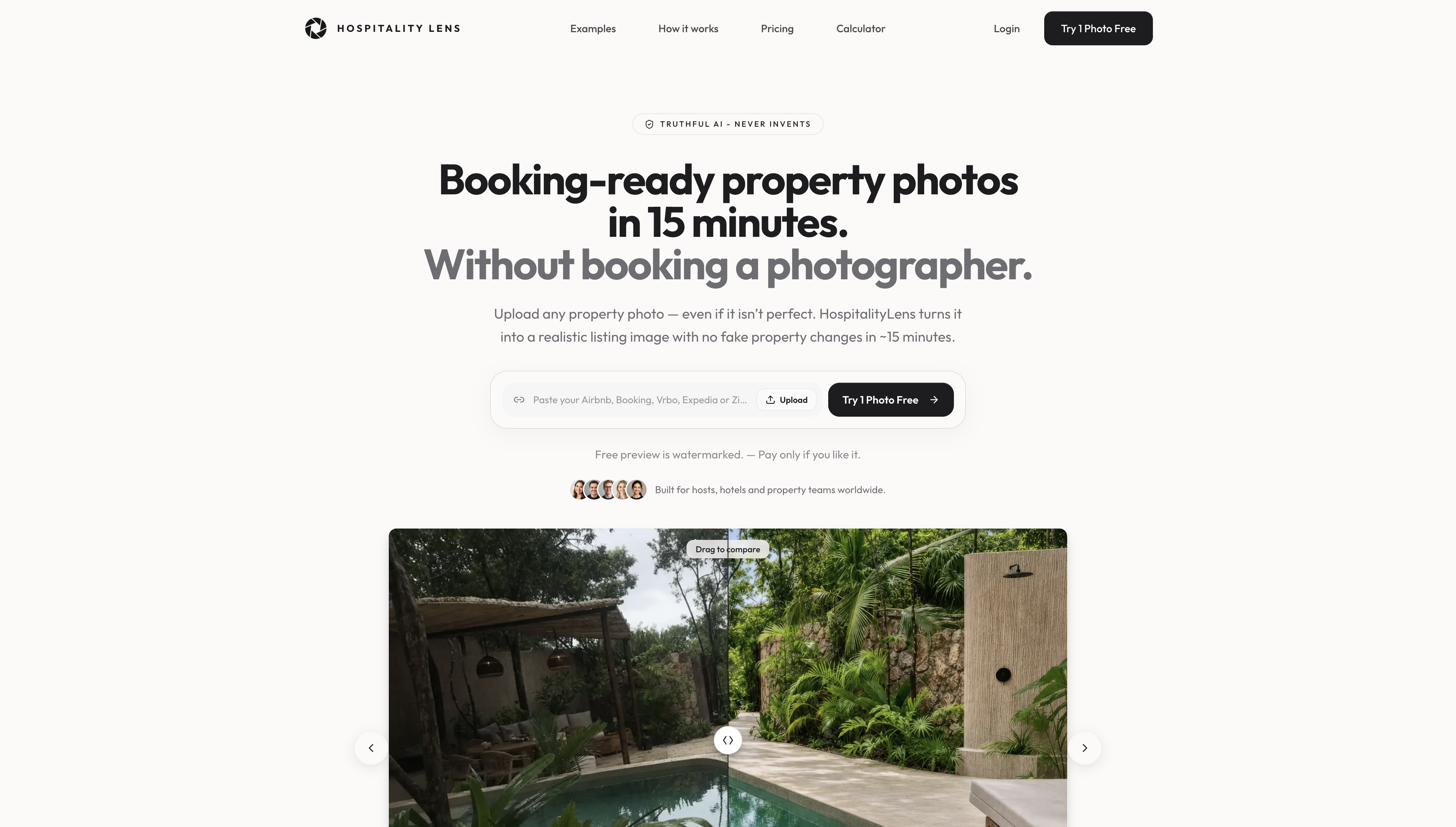
If your photos are usable but the color is off, a new shoot is not always necessary. Send us one photo and we return a free, watermarked preview. If you like it, the cost of the finished image varies by order. We correct white balance and color casts, tidy clutter, and enhance images while preserving the real property.
Current HospitalityLens pricing (USD); one-time packs — The Hero: 1 photo for $12; The Refresh: 10 photos for $59; The Property: 25 photos for $129; The Portfolio: 100 photos for $399; monthly subscriptions — THE STARTER: 10 photos/month for $49/month; THE OPERATOR: 25 photos/month for $99/month; THE PORTFOLIO: 100 photos/month for $299/month; one-time pack credits do not expire; monthly subscription credits remain valid for up to 3 months; 2 free revisions per photo on one-time packs; 3 free revisions per photo on monthly subscriptions. See current pricing.
FAQ
Should color space be sRGB or Adobe RGB?
For listing and web photos, choose sRGB. It is the standard that browsers, phones, and booking platforms are built around, so colors stay predictable. Choose Adobe RGB only when a color-managed print workflow or lab will use the wider gamut.
Which color space is best for photography?
It depends on the output. sRGB is the safest all-purpose choice and the right one for the web, while Adobe RGB or ProPhoto RGB suit editing when your output devices or print lab can use the extra colors, as Have Camera Will Travel describes. Whichever you use, calibrate your monitor and convert properly on export.
Should I have sRGB on or off on my monitor?
Use sRGB mode when you edit for the web, or when your monitor is wide-gamut and you do not have full color management. It shows you roughly what typical viewers will see. If you edit for print with a managed workflow, you may leave a wide-gamut mode on and soft-proof instead.
Which is better for photography, DCI-P3 or sRGB?
DCI-P3 is a wider gamut common in newer phones and displays, but listing platforms and most viewers still expect sRGB files. Deliver sRGB so colors look consistent everywhere. We have not covered DCI-P3 workflows in depth here, so check your target platform’s specifications before delivering anything else.
Sources
Recommended