Photography Tips
Blur License Plates Fast: 3 Photo Methods and Privacy Checks
Master quick photo and video methods to effortlessly blur license plates, safeguarding privacy with essential checks before sharing your images online.
By Hospitality Lens · · 11 min read

For a single photo, a one-click browser AI tool is your fastest route to a blurred plate. For video, where the plate moves across frames, a desktop editor with a tracking mask does the job properly. Before you upload anything, check whether the tool processes your file locally or sends it to a server, since that affects how your images are stored and handled.
TL;DR:
- Automatic detection works best on clear, well lit plates, but glare, motion blur, low resolution, and unusual designs can require manual correction.
- For moving plates, use a tracking mask, review the clip frame by frame, and add manual keyframes wherever turns or camera shifts cause drift.
- Before uploading sensitive images, confirm whether processing happens locally or on a server, and check the provider’s retention and third party sharing policies.
- Before publishing, inspect edited areas at 200 to 400 percent and check reflections in windows, mirrors, or wet pavement for readable plate characters.
- For teams editing dozens of listings each month, batch tools or API based services reduce the work of handling photos one at a time.
HospitalityLens
Polish Listing Photos Without a Photoshoot
HospitalityLens enhances existing property photos with lighting and color correction, perspective fixes, and clutter cleanup while preserving the real property.
Visit HospitalityLensTable of Contents
The right tool depends on what you’re editing and how much control you need. Browser-based AI tools are built for speed: you upload a photo, the tool detects the plate automatically, and you choose a style, usually blur, pixelation, or a solid color block. These work well for single images and short clips, and most finish in seconds. The tradeoff is less precision. If the plate sits at an odd angle or partially behind glare, automatic detection can miss it or blur the wrong area.
Desktop editors give you more control but ask more of your time. Premiere Pro and After Effects handle moving plates in video through masking and tracking, where you draw a shape over the plate once and let the software follow it across frames. Free editors like DaVinci Resolve offer similar manual masking, though without the same automated tracking polish.
For property managers or teams editing dozens of listings a month, batch tools or API-based services save real time over editing one photo at a time.
Before trusting any tool with your files, run through a short privacy checklist:
- Confirm whether processing happens in your browser or on the provider’s servers.
- Look for a stated retention policy: does the provider delete your original file after processing?
- Check whether the tool shares data with third-party processors.
Pro Tip: If a tool doesn’t disclose where your photos are processed, treat that as a sign to look elsewhere.
Step-by-step: blur license plates in photos (three fast methods)
Each method below takes a few minutes and produces a usable result. Pick the one that matches the software you already have.
- Browser AI tool: Upload your photo, let the tool detect the plate automatically, confirm the detection box is positioned correctly, choose blur or pixelation, then download and zoom in to check the result.
- Mobile image editor: Open the photo in an app like Snapseed or the built-in editor on your phone, select the plate area with a brush or shape tool, apply a blur or pixelate effect, export, then zoom in at full resolution to confirm the characters are unreadable.
- Desktop editor (Photoshop or GIMP): Make a rectangular selection around the plate, feather the edges slightly so the blur blends naturally, apply a Gaussian blur or mosaic filter, and save the result as a new file so your original stays intact.
Automated detection generally performs well on clear, well-lit plates, but accuracy drops with motion blur, reflections, low resolution, or unusual plate designs, and editors should expect to manually correct a small share of frames in typical footage, according to Adobe’s masking and tracking documentation.
Before you call it done, run through this quick verification pass:
- Zoom test: View the edited area at 200 to 400 percent to confirm no characters are legible.
- Keep originals: Save the unedited photo separately in case you need to re-edit later.
- Check metadata: Some photos carry embedded location or device data that privacy-conscious hosts may also want to strip before publishing.
Step-by-step: blur license plates in video using tracking masks
Blurring a moving plate takes more setup than a still photo, but the workflow is standard once you know the steps.
Start with preparation. Scrub through your footage and note any problem shots, low light, reflections off the plate, or moments where the car passes close to the camera and the plate briefly fills the frame. These are the frames most likely to need manual correction later.
- Run automatic detection if your software offers it, which places an initial mask over the plate in the reference frame you choose.
- Apply the mask and let the tracker follow it across the clip, a workflow that Adobe’s video tutorials describe as drawing a mask once and using automatic tracking to follow the object through subsequent frames.
- Scrub through the tracked clip slowly and look for drift, moments where the mask slides off the plate as the car turns or the camera angle shifts.
- Add manual keyframes at any drifting frame to pull the mask back into position, which Premiere Pro and After Effects both support through their masking tools.
If your software doesn’t support auto-tracking, the manual version of this workflow works the same way: draw the mask in your first problem frame, advance a few frames, nudge the mask back over the plate, and repeat until the clip is covered.
Pro Tip: Export a test clip and watch it at half speed and full zoom before finalizing. Drift that’s invisible at normal playback often shows up clearly when you slow things down.
Once exported, check the final video at multiple playback speeds and zoom levels. If a few frames still show partial plate characters, it’s faster to fix those manually than to re-run the entire tracking pass.
Verify results and privacy checklist before you publish
A blurred plate that’s still partially readable defeats the purpose, so verification matters as much as the edit itself.
Review your footage or photo frame by frame where possible, zoom in on the plate area, and pay attention to reflections in windows, mirrors, or wet pavement that can reveal plate text even when the plate itself is blurred. These reflected surfaces are an easy detail to miss on a first pass.
Before trusting a tool with sensitive images, check its privacy practices directly:
- Does the tool process files locally in your browser, or does it upload them to a server?
- What does the provider’s policy say about data retention and deletion?
- Are files shared with or processed by third parties?
The FTC recommends that companies handling image data build in reasonable protections and give clear notice about how that data is used, a standard worth applying when you choose any plate-blurring tool.
Operating a vehicle with a physically obscured license plate is illegal in many U.S. states, and some jurisdictions are actively expanding these rules.
Separately, several states are moving to ban concealed license plates outright, including covers that tint or alter plate visibility. That’s a different issue from editing a photo after the fact, but it’s worth understanding the distinction: blurring an image you’re publishing is a privacy choice, while covering a plate on an actual vehicle can carry fines.
If lighting, motion blur, or partial occlusion leave you unsure whether an edit fully hides the plate, re-edit the frame manually rather than publishing it as is.

How HospitalityLens handles privacy edits and when to use a managed service
When we enhance property photos, we can include privacy-safe edits as part of the same pass, so you’re not running a separate tool for every listing.
A managed edit makes the most sense when:
- You’re editing photos across many listings and want consistent results without reviewing each one by hand.
- Your source photos come from owners or cleaners and vary widely in quality.
- You need booking-ready images quickly without learning masking tools yourself.
We also remove logos and other distracting elements from listing photos, and our people-removal workflow follows a similar privacy-first approach. Every order comes with a free watermarked preview and a revision allowance, so you see the result before committing.
— The HospitalityLens Team
Consider a managed edit: try HospitalityLens for hands-off privacy edits
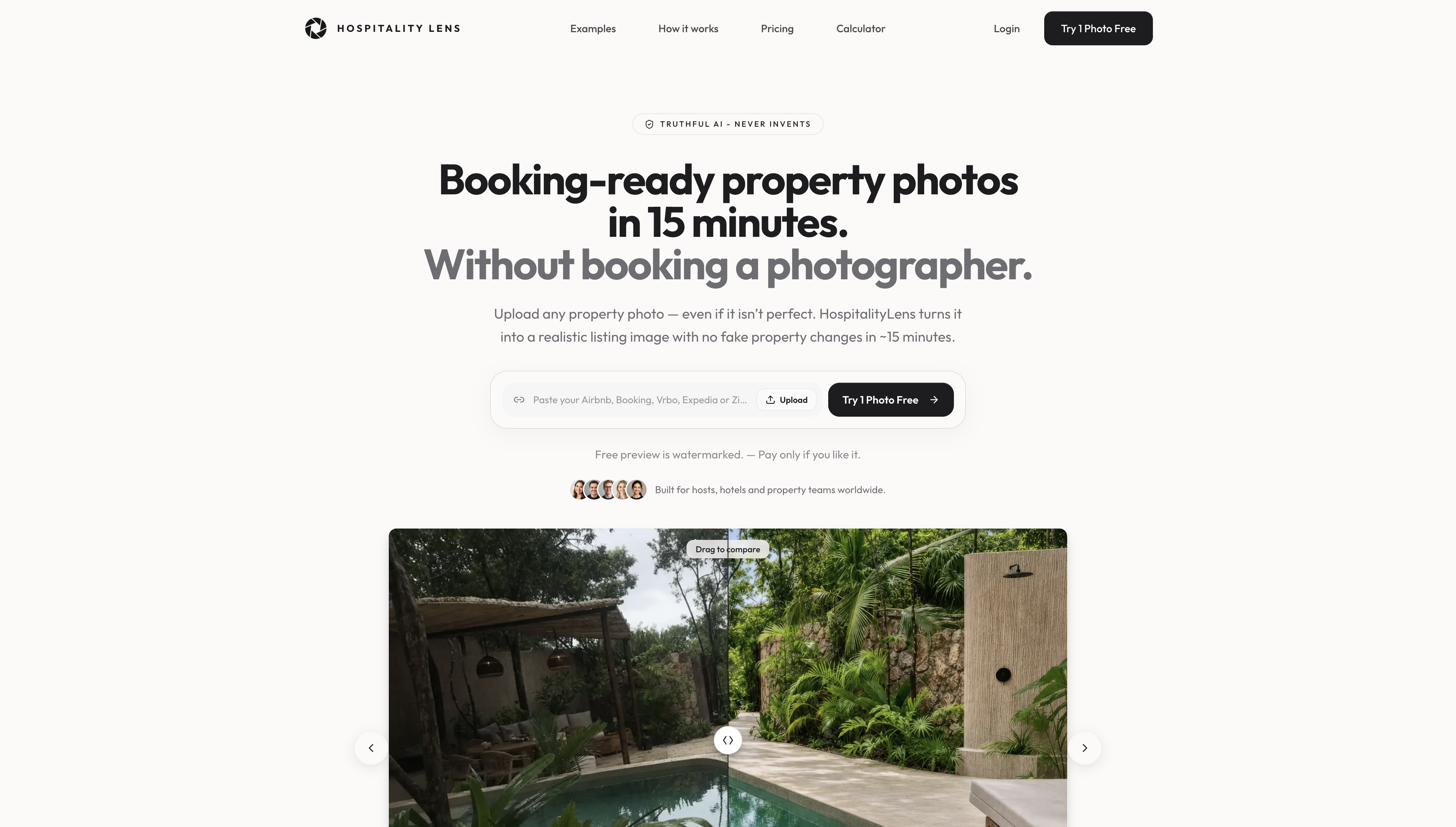
If you manage more than a handful of listings, editing plates and other privacy details one photo at a time adds up fast. We handle it as part of a complete enhancement pass, so your portfolio stays consistent without extra software or manual masking on your end.
Try one photo free: upload an image and get a watermarked preview with no obligation. Our property photo editing service covers plate blurring alongside lighting, clutter, and perspective fixes, with pricing and pack details on our pricing page.
FAQ
How can I blur out my license plate?
Upload the photo to a browser-based AI tool, confirm it detects the plate correctly, choose a blur or pixelate style, then download and zoom in to verify the characters are unreadable. For photos you already have, a property photo editing service can include this as part of a broader enhancement pass.
Do license plate camera blockers really work?
Physical blockers and covers that obscure a plate on a real vehicle are treated as illegal equipment in many U.S. states, and several states are moving to ban concealed plates outright. Editing a plate’s visibility in a photo or video after the fact is a separate, generally accepted privacy practice, but it doesn’t apply to driving with an obscured physical plate.
How can I blur out my car number plates?
The same methods used for any vehicle photo apply: a browser AI tool for a quick single-image edit, or a desktop editor with masking and Gaussian blur for more control. Always zoom in afterward to confirm no characters remain legible, since automatic detection can struggle with glare or unusual angles.
Why do some people blur license plates?
License plates can identify a vehicle and, indirectly, its owner, so blurring them before publishing photos or video reduces that privacy exposure. Under the GDPR in the European Union, plates are treated as personal data, which is one reason many publishing guides recommend anonymizing them even where local law doesn’t require it.
Is it legal to blur a license plate in a photo before posting it online?
Editing a plate’s appearance in a photo you’re publishing is generally a privacy choice rather than a legal requirement in the United States, though platform rules can vary. This is distinct from physically covering a plate on a vehicle, which many states explicitly restrict as illegal equipment.
Sources
Primary sources used for privacy and legal context
We drew on FTC guidance for privacy and data-handling practices, state-level reporting on license plate cover laws, GDPR’s treatment of plates as personal data, and Adobe’s documentation on masking and tracking workflows for video, linked throughout the sections above.
Recommended