Short-Term Rentals
Remove Logos From Photos for Hosts, Free Watermarked Preview
Seamlessly remove distracting logos from your property photos with AI or manual expertise, getting a free watermarked preview before you pay.
By Hospitality Lens · · 10 min read
Yes, AI logo removers can clean most ordinary logos in seconds using a technique called inpainting, and they typically work well enough for casual and marketing photos alike. For property and listing photos specifically, HospitalityLens gives you a more reliable path: a free watermarked preview, then a small fee only if you want the finished, unwatermarked image. Either route, one rule matters more than the tool you pick: only edit images you own or have permission to edit.
TL;DR:
- AI logo removers are effective for flat, well-lit logos but struggle with embossed, reflective, or angled surfaces.
- Combining automatic detection with manual brushing improves accuracy and minimizes residual artifacts or outlines.
- Manual editing with tools like Photoshop provides better results for complex textures or reflections, but should be done on a duplicate image layer.
- Check all edits at 100 percent zoom to identify halos, mismatched shadows, or pattern misalignments before finalizing.
- HospitalityLens emphasizes ethical editing, only modifying images you own or have permission to alter, to avoid legal or misrepresentation issues.
Table of Contents
How Do You Remove a Logo From a Photo With AI?
Most one-click logo removers follow the same basic sequence, and knowing it helps you get a cleaner result on the first try instead of fighting the tool for twenty minutes.
Here’s the workflow that actually works:
- Upload your photo. Stick to JPG, PNG, WebP, or HEIC, and keep the resolution as high as your original allows. Some tools automatically downscale very large files, so check the output size before you download.
- Let auto-detect find the logo, or brush it yourself. Many tools now combine both: automatic detection catches obvious marks, while manual brushing handles logos tucked into shadows or busy backgrounds. Combining the two is usually faster and more accurate than relying on auto-detect alone.
- Brush slightly past the edge of the logo. A margin of roughly 3 to 6 pixels for small logos, more for larger ones, gives the AI more surrounding pixels to work with, which improves how convincingly it rebuilds the surface underneath.
- Pick a surface or material hint if the tool offers one. Selecting “fabric,” “smooth,” or “pattern” tells the model what kind of texture to reconstruct, since the AI is essentially predicting what belongs there based on the pixels around it.
- Run the removal, then zoom to 100 percent. Check the patch for blur, warped lines, or a faint outline where the logo used to be.
- Do a second, smaller pass if needed. A tighter brush stroke over just the leftover edge often fixes what the first pass missed.
- Export as PNG when detail matters most, or JPG when file size is the priority. PNG holds onto the inpainted texture better; JPG compresses it, which can be fine for a quick social post but rough on a listing photo.
Pro Tip: Test one photo before you commit to a bulk edit. Watermarked previews exist specifically so you can judge the quality of the reconstruction before spending money on the full batch.
What If the AI Result Isn’t Clean Enough?
Sometimes the automated version leaves a smudge, a ghost outline, or a texture that doesn’t quite match. That’s when manual tools earn their keep.
On your phone:
- Zoom into the logo area first. Precision at native resolution beats precision on a shrunk-down preview.
- Use your phone’s built-in retouch or healing tool, or a dedicated brush-and-heal app, to nudge the edit instead of redoing the whole thing.
- Export the highest-quality copy your device allows. Mobile apps are convenient for quick fixes, though desktop and web tools generally give you more control over resolution.
On desktop, in Photoshop or Affinity:
- Select the logo area with a lasso or selection tool.
- Run content-aware fill or an inpainting filter to rebuild the base texture.
- Switch to the clone stamp for repeating patterns like tile grout, brick, or woven fabric, where the software’s guess can drift.
- Finish with spot healing to smooth any leftover seams.
Manual editing is the better call for embossed or debossed logos, heavy reflections on glass or metal, and highly patterned surfaces where AI tends to blur detail instead of rebuilding it. Whichever tool you use, work on a duplicate or keep your layers, so a bad pass doesn’t cost you the original.
Why Do Some Logo Removals Look Fake?
Repeating patterns, embossed logos, glare, and steep camera angles are the four situations where inpainting struggles most. The AI is guessing what should be under the logo based on nearby pixels, and a busy or unique texture gives it less to work with than a plain, consistent surface. A logo pressed into leather or stamped into metal leaves a shadow the software can miss entirely.
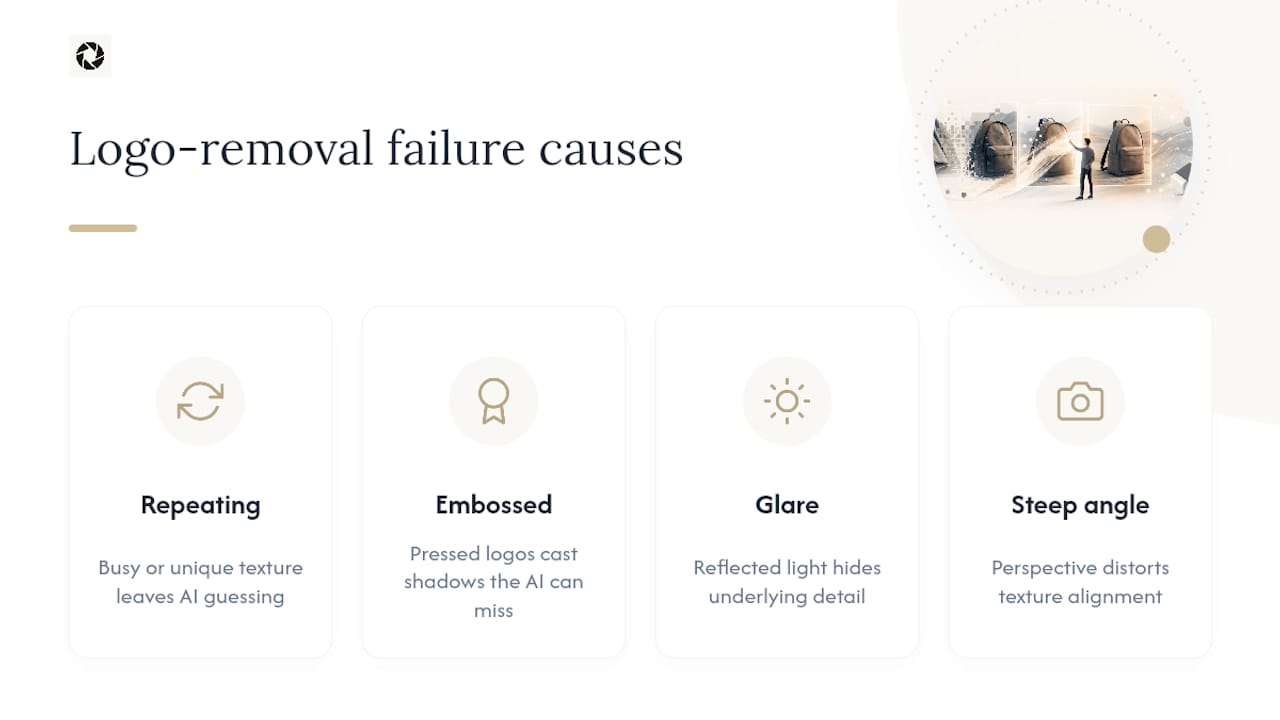
Before you call an edit finished, zoom to 100 percent and check three things: edges (any visible outline or color shift), shadows (do they match the surrounding light), and texture continuity (does the pattern actually line up). If you spot a halo around the edit, a second, tighter pass usually fixes it.
Legally and ethically, removing a logo doesn’t grant you any new rights to the image. Edit only photos you own or are licensed to edit, and never remove a trademark to misrepresent where a product came from or to imply an endorsement that doesn’t exist. If the photo has major compositional problems, involves product claims, or touches legally sensitive material, a reshoot or professional retouch is the safer, more honest choice than an AI patch job.
How HospitalityLens Handles Logo and Distraction Removal
HospitalityLens edits for truth, not transformation. That means lighting and color correction, perspective and horizon fixes, clutter cleanup, and removing distracting people or objects, including stray branding that doesn’t belong in the frame. It does not mean inventing a room, a view, or an amenity that isn’t there.
Every property manager or host can try one photo free, and that preview arrives watermarked so you can judge the quality before paying anything. If you want the finished, unwatermarked image, the price and revision policy are available on the HospitalityLens website. For teams managing more than a handful of listings, bulk packs and monthly subscriptions bring the per-photo cost down significantly, and subscribers get three revisions per photo instead of two.
HospitalityLens works best for:
- Onboarding new properties fast without scheduling a photographer
- Refreshing a listing that’s underperforming with dated or dark photos
- Keeping a multi-property portfolio visually consistent
- Cleaning up owner-submitted or cleaner-taken photos before they go live
Before you submit anything, a little prep goes a long way. Shoot flat-on rather than at an angle, since extreme perspective makes any kind of reconstruction, AI or manual, noticeably harder. Use natural daylight where you can, and leave a small margin around anything you expect to be edited out.
A Short Note on Responsible Editing
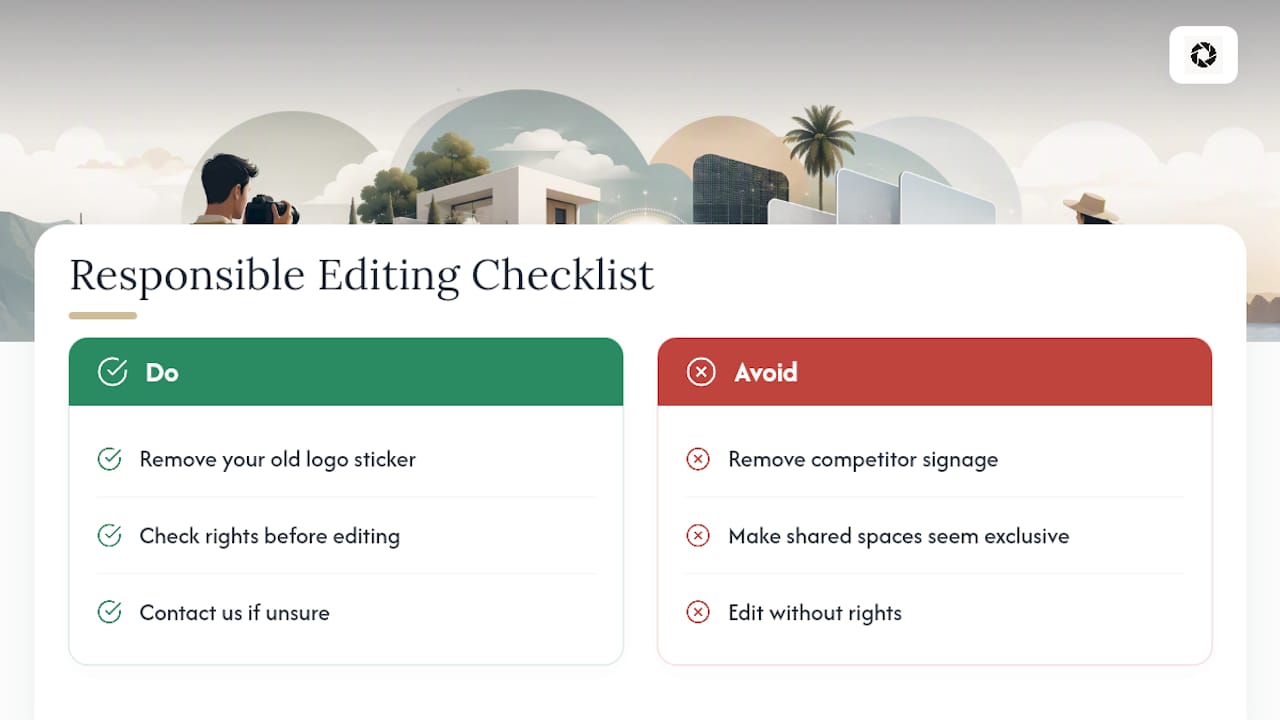
We built HospitalityLens around one principle: edits should make a real property look its best, not make it look like somewhere it isn’t. Removing an old sticker with your business’s previous logo from your own listing photo is a reasonable, honest edit. Removing a competitor’s signage to make a shared amenity space look exclusive to your property is not, and it can create real legal exposure around trademark and misrepresentation, not just an ethical gray area.
If you manage volume work, or you’re unsure whether you actually hold the rights to edit a particular photo, reach out before you submit it. We would rather answer that question upfront than let an edit go out that shouldn’t have.
— The HospitalityLens Team
Try One Photo Free Before You Commit to a Full Shoot
If your current listing photos are usable but rough around the edges, a full reshoot is often more time and money than the problem calls for. HospitalityLens gets you booking-ready images from the photos you already have, phone shots, cleaner-taken pictures, or an existing gallery that just needs a cleanup, without the scheduling headache of hiring a photographer for every refresh.
Start with the same offer described throughout this article: try one photo free, and the preview comes watermarked so you can judge the quality before spending anything. If you like what you see, pricing and revision details are available on the HospitalityLens website. Property managers handling multiple listings often use bulk packs or subscriptions offering different options for multiple photos with revisions. Payments made toward a single photo may be applied to a pack or subscription if you upgrade afterward. Head to the property manager photo editing page to see the full pricing breakdown, or follow the step-by-step guide to submit your first photo today.
Sources
FAQ
Can I remove a logo from a photo?
Yes, as long as you own the photo or have permission to edit it. AI inpainting tools handle most flat, well-lit logos in seconds, while embossed marks, heavy reflections, and steep angles often need a manual touch-up pass.
How can I remove a logo from an image for free?
Most AI logo removers let you upload a photo and generate a free preview, though that preview usually carries a visible watermark until you pay for the final download. Testing one image first is a smart way to judge quality before buying a pack or subscription.
What’s the best free watermark remover?
There isn’t one universal best option. AI tools handle simple logos on plain surfaces well, while textured, patterned, or angled surfaces often need a manual pass in an editor like Photoshop or Affinity for a clean result.
Can an iPhone remove a watermark from a photo?
An iPhone’s built-in retouch tools or a dedicated mobile app can handle small, simple removals directly on your phone. For higher resolution and finer control, especially on listing photos meant for booking platforms, a desktop or web-based tool typically gives you more precision.
Is HospitalityLens a good option for removing logos from property photos?
For rental and hospitality listings, yes. HospitalityLens combines logo and clutter removal with lighting and perspective correction, offers a free watermarked preview, and charges a small fee for the finished image with revisions included.
Recommended