Short-Term Rentals
Hosts: 10 Photo Minimum to Meet Booking.com Photo Specs, Skip Reshoots
Boost your Booking.com bookings by mastering photo specs and shooting techniques, ensuring high-quality images that avoid costly reshoots.
By Hospitality Lens · · 11 min read
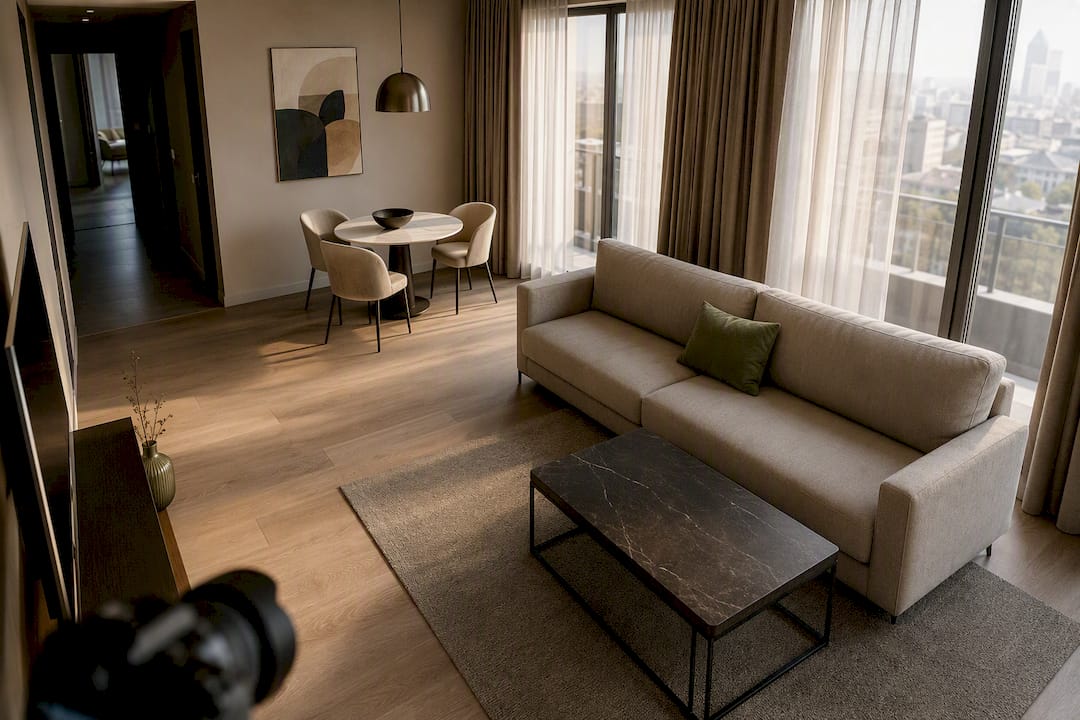
Booking.com requires landscape orientation, a minimum resolution of 2048 x 1080 pixels (4000 x 3000 preferred), at least 10 uploaded photos, and zero watermarks, collages, black-and-white edits, or personal information visible in frame. Shoot from a camera height of 3 to 5 feet. If your current photos are dark, crooked, or cluttered but otherwise usable, an AI enhancement service with a free watermarked preview is often faster than booking a new shoot.
TL;DR:
- Photos must be at least 2048 x 1080 pixels in landscape orientation, with 4000 x 3000 pixels preferred for optimal display.
- Proper composition involves shooting from a corner at 3 to 5 feet height during daylight, avoiding fisheye lenses and ensuring correct lighting.
- Image quality can influence how people evaluate a listing, but there is no universal performance uplift that applies to every property. Measure clicks, inquiries, bookings, or sales on the individual listing.
- Cover key areas like exteriors, living rooms, bedrooms, bathrooms, and amenities, aiming for around 24 images for multi-unit properties.
- AI enhancement can fix lighting and clutter issues in existing photos but cannot replace professional shoots for unfixable or architectural images.
Table of Contents
What Are Booking.com’s Photo Requirements?
Before you pick up a camera or upload a single file, run through this list. It catches the mistakes that get photos flagged or, worse, quietly hurt your conversion rate without ever triggering a rejection.
- Confirm every photo is landscape orientation and at least 2048 x 1080 pixels.
- Clear rooms of personal items, laundry, medications, and any screens showing personal accounts.
- Tidy and lightly style each space, but keep it lived-in rather than staged.
- Prioritize bathrooms, main living areas, the exterior entrance, and any amenity guests search for.
- Shoot in daylight, hold the camera at 3 to 5 feet, and skip fisheye or ultra-wide lenses.
- Tag and label images accurately during upload so listed amenities match what guests actually see.
None of this requires special equipment. It requires attention, which is the part most hosts skip when they’re rushing to get a listing live.
Technical Requirements and File Specs
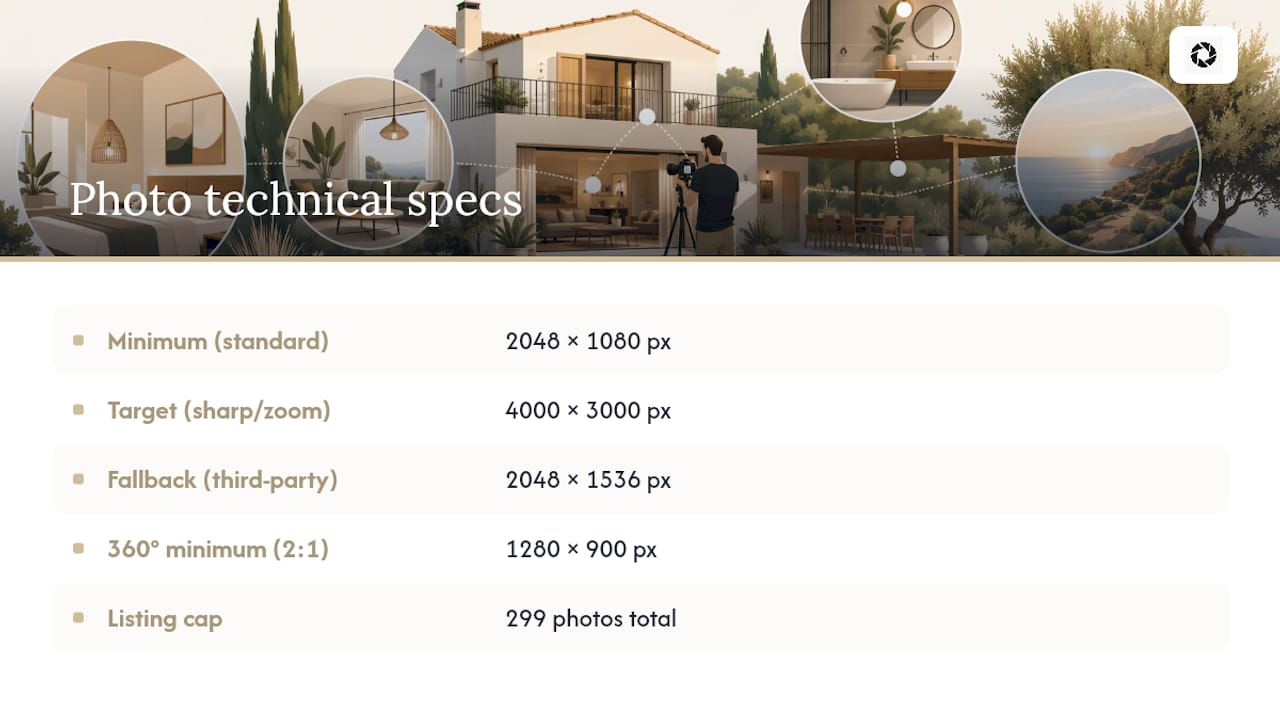
Booking.com’s numbers are specific, and missing them by even a little affects how your gallery displays on mobile devices, where most bookings happen. The official photo requirements page sets 2048 x 1080 pixels as the floor and 4000 x 3000 as the target for sharp, zoomable images. Some third-party guides suggest 2048 x 1536 as a safe display resolution, but that figure isn’t the platform’s own minimum. Treat it as a fallback, not a target.
360° photos follow a different rule: a 2:1 aspect ratio at a minimum of 1280 x 900 pixels. If you’re using a 360° camera or app, check the export settings before you shoot a whole property, since a wrong ratio means reshooting everything.
The Photo API accepts only image/jpeg and image/png, and it caps every listing at 299 photos total, regardless of upload method. File-size ceilings differ slightly between the Extranet interface and the API, so if you manage listings programmatically, check the current API documentation before a bulk upload. As a working rule, export JPEGs at the highest quality setting your file-size limit allows. Heavy compression is where good photos start looking amateur on a retina screen.
How Many Photos Should You Upload, and of What?
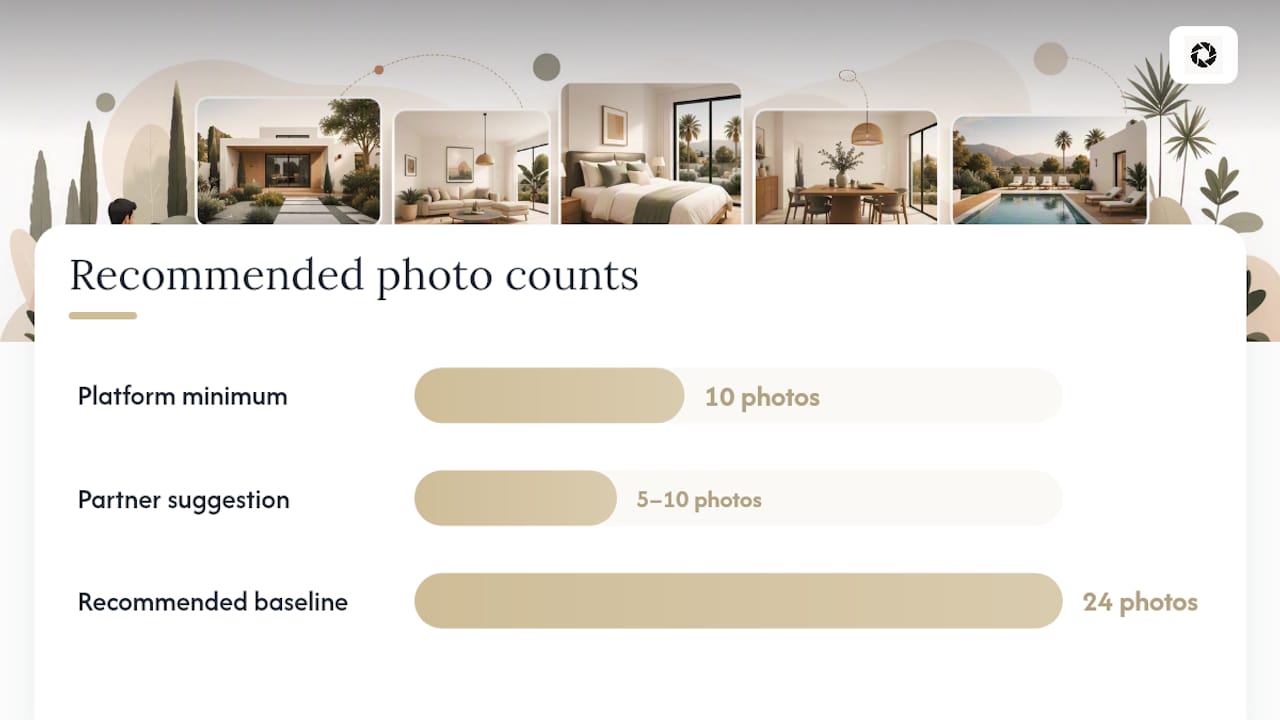
Booking.Image quality can influence how people evaluate a listing, but there is no universal performance uplift that applies to every property. Measure clicks, inquiries, bookings, or sales on the individual listing. Platform experiments push further, suggesting closer to 24 property photos with roughly four per room type for listings with multiple room categories.
For a single-unit rental, aim to cover:
- The exterior and entrance, so guests recognize the property on arrival.
- The living area and kitchen from at least two angles each.
- Every bedroom and bathroom, individually.
- Any view, balcony, or outdoor space.
- Major amenities: pool, gym, parking, or anything you advertise in your listing description.
If you run a multi-unit or condo-hotel operation, photograph each distinct apartment type rather than relying on one “representative” unit, and treat 24 total photos as your baseline, not your ceiling. Booking.com’s own guidance also flags amenities that families search for specifically, including high chairs, cribs, and play areas, so if you have them, shoot them. Bathroom photos in particular tend to be the detail guests use to judge cleanliness before anything else, so never skip them to save time.
How Should You Shoot Photos for Booking.com?
Composition is where most owner-taken photos fall apart, not because the room looks bad, but because the angle makes it look smaller or more chaotic than it is. Follow these steps in order:
- Set your camera height to 3 to 5 feet (100 to 160 cm) and keep it consistent across every room. This single habit does more for portfolio quality than any editing app.
- Shoot from a corner of the room, not the center, to capture depth and let guests understand the layout.
- Keep the main subject in the center third of the frame. Cropped display on mobile devices tends to trim the edges first.
- Open curtains, turn on ambient lamps, and shoot during daylight hours. Skip the flash entirely, since it flattens shadows and kills the sense of depth a room actually has.
- Use a tripod or steady surface where possible, and stand far enough back that the whole subject fits without a tight, cramped crop.
Avoid fisheye or very wide-angle lenses. They exaggerate room size in a way that creates a mismatch between what guests expect and what they find at check-in, and that gap shows up in reviews.
Pro Tip: Photograph every room in your portfolio at the exact same height and angle style. It sounds rigid, but it’s the fastest way to make a mixed batch of owner photos and professional photos look like they belong to the same brand.
Some of these are outright bans; others just quietly undercut your booking rate. Either way, they’re worth fixing before you upload anything.
- Watermarks, logos with contact details, and collages combining multiple shots into one frame.
- Black-and-white or heavily filtered images, along with extreme HDR that looks artificial.
- Personally identifiable information in frame: mail, IDs, medical bills, or anything with a name and address visible.
- Reflections showing the photographer, phone, or camera equipment.
- Televisions left turned on in the shot.
The fix for most of these is faster than it sounds. Turn off the TV, move the mail off the counter, reframe so the mirror doesn’t catch you mid-shot, and take a second photo from a slightly different angle if the first one has a problem you can’t edit around.
How Do You Upload and Manage Photos on Booking.com?
Most hosts manage their gallery through the Extranet or the Pulse app, both of which let you add, reorder, and set a main photo directly. When you swap out a main image, do it deliberately. That photo carries the most weight in search results, and replacing it with something untested can quietly dent your click-through rate.
For teams managing volume, the Photo API documents endpoints for uploading, checking upload status, retrieving tags, and deleting images. Keep the 299-photo cap and the image/jpeg and image/png requirement in mind before any bulk job.
- Confirm orientation, resolution, and file type before upload, not after.
- Tag each photo accurately. Mislabeled amenities create guest complaints, and unclear tags mean features simply don’t display where they should.
- Avoid re-uploading near-duplicate shots. Booking.com’s system tends to flag or reject them.
- Keep a versioned folder of originals and edited files so you can roll back a bad edit without reshooting.
Should You Hire a Photographer or Enhance Existing Photos?
AI enhancement reliably fixes exposure, color balance, perspective and horizon issues, and clutter, without inventing anything that isn’t already there. It’s genuinely useful when your phone photos or existing listing images are usable but underwhelming: dark bathrooms, crooked horizons, a cluttered kitchen counter. It is not the right tool when you need new angles, architectural photography for a flagship property, or when the original photos are unusable altogether, say, missing a room entirely or shot in near darkness with no fixable exposure data. In those cases, a professional photographer remains the better investment.
Free watermarked preview. Pay only if you like it. No card is required to create the free watermarked preview. See current pricing for unlocks, one-time packs, and subscriptions.
Prioritizing Photo Fixes Across a Portfolio
Image quality can influence how people evaluate a listing, but there is no universal performance uplift that applies to every property. Measure clicks, inquiries, bookings, or sales on the individual listing.
Standardize your shoot spec across the portfolio: same camera height, same corner-shooting angle, same lighting approach. Booking.com’s own guidance on portfolio consistency notes that mismatched quality between units in the same portfolio tends to make the weaker listings look worse by comparison, even when they’re not objectively bad. Build a simple style sheet, keep it, and use it every time a new unit onboards or a cleaner submits fresh photos. Treat seasonal refreshes as a calendar item, not an afterthought, and fold a quick photo check into your standard onboarding process so nothing slips through untouched for years.
Try HospitalityLens Before You Book a Reshoot
If your photos are usable but not doing your listing justice, a new photoshoot isn’t always the first move. HospitalityLens fixes lighting, color, perspective, and clutter on the images you already have. That means no scheduling delays, no coordinating with a photographer’s calendar, and no per-shoot invoice for a fix that might take fifteen minutes of correction work.
Free watermarked preview. Pay only if you like it. No card is required to create the free watermarked preview. See current pricing for unlocks, one-time packs, and subscriptions.
Primary Sources and Partner Resources
For the exact numeric specs cited throughout this guide, go directly to Booking.com’s own photo requirements page and the Photo API documentation. The Partner Accommodation Guide covers composition and amenity-shot standards in more depth, and the partner video on capturing photos walks through the process visually. For seasonal photo planning ideas, see this guide to choosing holiday homes.
FAQ
What Is the Minimum Photo Resolution for Booking.com?
The minimum is 2048 x 1080 pixels in landscape orientation, with 4000 x 3000 pixels preferred for sharper display on larger screens.
What Is the 2/3 Rule for Pictures?
There’s no official “2/3 rule” in Booking.com’s published guidelines; the platform’s actual composition advice is to shoot from a corner, hold the camera at 3 to 5 feet, and keep the main subject centered so mobile crops don’t cut it off.
What Photo Size Should I Use for Airbnb Listings?
This guide covers Booking.com’s specific requirements, not Airbnb’s; Booking.Image quality can influence how people evaluate a listing, but there is no universal performance uplift that applies to every property. Measure clicks, inquiries, bookings, or sales on the individual listing.
Can I Use AI-Enhanced Photos Instead of Hiring a Photographer?
Yes, for photos that are usable but poorly lit, crooked, or cluttered. Services like HospitalityLens correct exposure, color, and perspective without adding rooms or features that don’t exist, though a professional photographer is still the better call for flagship properties or when your original photos are unusable.
Recommended