Photography Tips
WebP vs. JPEG: Which Format Should You Use?
Optimize your website's performance by leveraging WebP for faster load times and improved image quality, while understanding when JPEG remains essential.
By Hospitality Lens · · 18 min read

For most modern web images, WebP is the better choice. It delivers 25–35% smaller files than JPEG at comparable perceptual quality, which translates directly to faster page loads and better Core Web Vitals scores. Serve WebP as your primary format with a JPEG fallback, and you cover nearly every browser in use today.
JPEG remains the right call in a few specific situations:
- Your editing pipeline relies on tools that don’t yet support WebP natively (certain print workflows, older DAM systems)
- You need maximum compatibility with email clients, which have inconsistent WebP support
- You’re storing archival masters or sending files to clients who expect JPEG
- Your CMS or hosting stack doesn’t support server-side format negotiation
The practical next step: convert hero images and above-the-fold photos to WebP first, keep high-quality JPEG masters in your asset library, and use the <picture> element or a CDN rewrite to serve the right format automatically.
Key Takeaways
WebP delivers 25–35% smaller files than JPEG at equivalent perceptual quality, making it the right delivery format for web images when you pair it with a JPEG fallback and keep lossless masters for editing.
| Point |
Details |
| Default to WebP for web delivery |
WebP files run 25–35% smaller than JPEG at equal perceptual quality, improving LCP and page speed. |
| Keep JPEG masters for editing |
Store originals at Q85–90 JPEG or lossless; never use WebP lossy as an archival or editing source. |
Use the <picture> element |
Serve WebP with a JPEG fallback so older browsers and email clients receive a compatible format. |
| Encode with cwebp or mozjpeg |
Use cwebp at Q75–85 for WebP delivery; use mozjpeg at Q85–90 for high-quality JPEG masters. |
| Prioritize hero images first |
Convert above-the-fold listing photos to WebP first; they carry the greatest page-speed and booking impact. |
Table of Contents
How WebP and JPEG differ in compression and features
JPEG has been the dominant web photo format since the early 1990s. It uses discrete cosine transform (DCT) compression, which breaks an image into 8×8 pixel blocks, applies frequency-domain quantization to each block, and discards detail the eye is least likely to notice. The result is a compact file, but the block structure creates the characteristic “ringing” artifacts around sharp edges at aggressive compression settings.
WebP, developed by Google and released in 2010, uses a fundamentally different approach. Its lossy mode is based on the VP8 video codec’s intra-frame encoding, which uses larger, more flexible prediction blocks and applies entropy coding on top. The lossless mode uses a separate algorithm with palette reduction and backward reference compression. WebP supports both lossy and lossless compression, transparency (alpha channel), and animation, none of which JPEG handles natively.
A few technical differences worth understanding:
- Chroma subsampling: JPEG typically uses 4:2:0 subsampling by default, which halves color resolution horizontally and vertically. This can blur colored edges in text-on-color or fine-detail images. WebP’s lossy mode also uses chroma subsampling, but its prediction-based encoding tends to handle color transitions more gracefully at equivalent file sizes.
- Transparency: JPEG has no alpha channel. Any image that needs a transparent background requires PNG or WebP. This alone makes WebP the practical choice for product cutouts, logos, and overlays.
- Animation: JPEG cannot animate. WebP supports multi-frame animation, making it a lighter alternative to GIF for simple motion graphics.
- Color depth: Both formats support 8-bit color per channel. WebP lossless supports up to 32-bit (including alpha). JPEG supports 12-bit in some implementations, though 8-bit is standard on the web.
- Metadata: Both formats carry Exif and XMP metadata. WebP uses a RIFF container, which is slightly less universally supported by metadata tools than JPEG’s established container.
WebP’s lossless mode is not a replacement for PNG in all cases. For images with large flat-color areas, PNG can sometimes produce smaller files. For photographic content, WebP lossless is almost always more compact than PNG, though WebP lossy at a reasonable quality setting will be smaller still.
Pro Tip: If you’re comparing WebP vs. PNG for a specific image, run both encoders and check the output size. Don’t assume one wins without testing, especially for graphics with mixed photographic and flat-color regions.
What real benchmark data shows about file size and quality
Raw file size comparisons are misleading without a perceptual quality anchor. A JPEG at quality 50 and a WebP at quality 80 might produce similar file sizes but very different visual results. Benchmarks that matter use two metrics alongside file size:
- SSIM (Structural Similarity Index): Measures how similar two images look to the human visual system, on a scale from 0 to 1. An SSIM score of 0.95 or above is generally considered visually close to the original.
- PSNR (Peak Signal-to-Noise Ratio): Measures the ratio of maximum possible signal to noise introduced by compression, expressed in decibels. Higher PSNR values indicate less distortion, though it correlates imperfectly with perceived quality.
- BPP (Bits Per Pixel): Normalizes file size to image dimensions, making cross-image comparisons fair.
Benchmarks using SSIM/BPP comparisons consistently find WebP produces 25–35% smaller files than JPEG at equivalent perceptual quality. The savings are most pronounced for photographic content at moderate-to-high quality settings.
Note: These figures represent approximate relative proportions from benchmark ranges, not measurements from a single specific image. Actual sizes vary by image content, dimensions, and encoder version.
The page-load impact of those savings is real. Switching hero images and listing photos from JPEG to WebP can reduce image payload considerably, which often shows up as measurable Largest Contentful Paint (LCP) improvements, particularly on mobile connections; for event planners managing venue visuals, live availability software for event planners can help coordinate these assets efficiently (VenueWrangler blog).
Where WebP works and where JPEG is still safer
Browser support for WebP is now broad. Chrome, Firefox, Safari (since version 14), Edge, and Opera all support it. On mobile, both iOS Safari and Android Chrome handle WebP without issue. The practical coverage across modern browsers is high enough that WebP is safe as the primary delivery format for most web projects, provided you include a JPEG fallback for older clients.
The remaining gaps are worth knowing:
- Internet Explorer: No WebP support. If your analytics show meaningful IE traffic, a JPEG fallback is not optional.
- Older iOS Safari (pre-14): No WebP support. Devices running iOS 13 or earlier will not render WebP.
- Email clients: Gmail renders WebP in its web interface, but many desktop email clients (Outlook on Windows in particular) do not. For email campaigns, JPEG remains the safe default.
- Print workflows: Most print RIPs and prepress tools do not accept WebP. Always export JPEG or TIFF for print.
On the tooling side, ImageMagick handles both WebP and JPEG conversion in batch pipelines and is widely available on Linux servers and CI environments. Photoshop supports WebP natively as of version 23.2. Lightroom Classic added WebP export in version 11.4. Older versions of both require a plugin.
For WordPress sites, plugins like WebP Express and Imagify handle on-upload conversion and rewrite rules automatically, removing the need to configure server-level negotiation manually.
Compatibility checklist before deploying WebP in production:
- Confirm your browser analytics show negligible IE and pre-iOS 14 traffic, or plan a JPEG fallback
- Verify your CMS or image CDN can serve WebP and fall back to JPEG based on the
Accept header
- Check that your image-editing pipeline (Lightroom, Photoshop, DAM) can open and export WebP
- Test your email templates separately; use JPEG for any images sent in campaigns
Pro Tip: Run your WebP deployment through BrowserStack or a real-device lab before going live. Emulators don’t always catch rendering issues that appear on physical iOS devices running older firmware.
Choosing WebP or JPEG by use case
The format decision is rarely one-size-fits-all. Different image types have different priorities, and the right answer depends on what you’re optimizing for.
Hero images and above-the-fold photos are the highest-value targets for WebP conversion. They’re large, they load first, and they have the biggest impact on LCP. Serve WebP here with a JPEG fallback and you capture the maximum performance benefit.
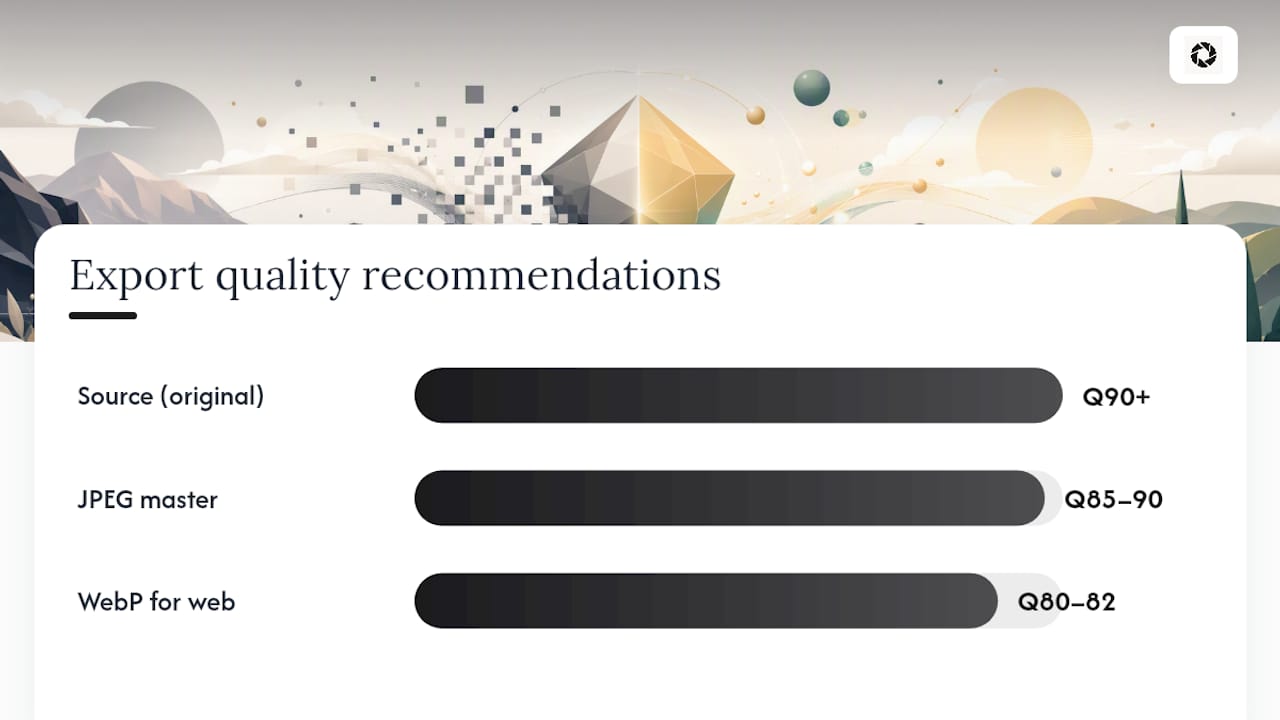
Product photos and property listing images benefit from WebP for the same reason, with one caveat: if the images will also be used in print marketing or sent to third-party platforms that don’t accept WebP, keep a high-quality JPEG master (quality 85–90) in your asset library. Export WebP for web delivery from that master, not from a previously compressed JPEG.
Thumbnails and gallery grids are strong WebP candidates. The file-size savings at thumbnail dimensions are proportionally significant, and the quality difference between WebP and JPEG at small sizes is negligible.
Screenshots and UI graphics with text, sharp lines, or flat color areas can be tricky. WebP lossy can introduce subtle artifacts around text edges. For these, test WebP lossless against PNG; the winner depends on the specific image.
Archival masters should never be WebP lossy. Store originals as lossless TIFF, PNG, or high-quality JPEG (Q90+). WebP lossy is a delivery format, not an archival format.
For property listings specifically, the types of photos that drive the most views are hero shots, living spaces, and kitchens. These are exactly the images where WebP’s file-size savings matter most for page speed, and where quality retention at moderate compression is critical for guest trust.

Pro Tip: For listing images on Airbnb, Vrbo, or Booking.com, the platform re-encodes your uploads anyway. Focus WebP optimization on your own direct-booking website and property marketing pages, where you control the delivery stack.
How to serve WebP safely without breaking older browsers
The <picture> element is the most reliable client-side approach. It lets the browser select the best format it supports without JavaScript:
<picture>
  <source srcset="hero.webp" type="image/webp">
  <img src="hero.jpg" alt="Living room with natural light">
</picture>
Browsers that support WebP load hero.webp. Browsers that don’t fall back to hero.jpg. The <img> tag’s alt attribute and accessibility behavior are preserved.
For server-side negotiation, the browser sends an Accept header that includes image/webp when it supports the format. Your server or CDN can inspect this header and rewrite the response:
- Check the incoming
Accept header for image/webp
- If present, serve the
.webp version of the requested image
- If absent, serve the original JPEG
- Set
Vary: Accept in the response headers so caches store both versions separately
CDNs like Cloudflare, Fastly, and AWS CloudFront can handle this rewrite automatically with format negotiation rules, removing the need for application-level logic. Most image CDNs (Cloudinary, Imgix) do this by default when you append format parameters to the image URL.
Implementation checklist:
- Add
Vary: Accept to image responses when using server-side negotiation, or caches will serve the wrong format to some users
- Confirm your CDN or origin server stores both the JPEG and WebP versions, not just one
- Test the fallback path explicitly by spoofing an
Accept header that omits image/webp
- Verify cache TTLs are set correctly so WebP and JPEG versions don’t collide in shared caches
Pro Tip: If you use a WordPress host that handles image delivery through a CDN layer, check whether WebP conversion is already happening at the CDN level before adding a plugin. Double-converting images wastes server resources and can degrade quality.
Switching hero images from JPEG to WebP can reduce image payload by roughly a third, which often produces measurable LCP improvements on mobile, where connection speed amplifies the difference between a 180 KB and a 120 KB image.
Encoders and settings that give you the best results
The encoder you choose matters as much as the format. Different tools produce different output quality at the same nominal “quality” setting.
cwebp / libwebp is the reference WebP encoder from the WebM Project. It’s the most reliable starting point for WebP encoding. A standard lossy conversion looks like this:
cwebp -q 80 input.jpg -o output.webp
Quality 75–85 is the practical range for web delivery. Below 75, WebP lossy starts showing artifacts in smooth gradients. Above 85, file sizes grow without proportional quality gains.
For lossless WebP:
cwebp -lossless input.png -o output.webp
mozjpeg / cjpeg is the recommended encoder when you need high-quality JPEG output. It produces smaller files than the standard libjpeg (cjpeg) encoder at the same quality setting by using improved Huffman coding and trellis quantization. A typical command:
cjpeg -quality 85 -progressive input.ppm > output.jpg
The -progressive flag creates a progressive JPEG that renders incrementally, which feels faster to users on slow connections. JPEG quality scales are encoder-specific; Q85 in mozjpeg is not identical to Q85 in Photoshop. For archival masters, Q85–90 is a reasonable ceiling. Q75 is a practical default for web delivery when file size matters.
ImageMagick handles batch conversion across both formats and integrates cleanly into CI pipelines and server-side scripts:
magick convert input.jpg -quality 80 output.webp
magick mogrify -format webp -quality 80 *.jpg
The mogrify command processes an entire directory in place. Use it carefully; it overwrites source files unless you specify an output directory with -path.
Photoshop exports WebP natively from File > Export > Export As, with a quality slider. The quality values don’t map directly to cwebp’s scale, so test output sizes against cwebp at equivalent visual quality before committing to Photoshop as your batch encoder.
Pro Tip: Never re-encode a JPEG as JPEG. Each generation of lossy compression adds artifacts on top of existing ones. Always encode from a lossless source (TIFF, PNG, RAW) or a very high-quality JPEG master. The cjpeg documentation flags this explicitly as a quality risk.
WebP drawbacks and when JPEG is the honest choice
WebP is not universally better. There are real situations where JPEG is the more practical format, and it’s worth being direct about them.
Encoding speed and CPU cost. WebP encoding, especially at higher quality settings or with lossless mode, is slower than JPEG encoding. For large inventories of images processed on a server, this adds up. If you’re batch-converting thousands of listing photos on a shared host, WebP encoding can noticeably increase processing time and CPU load compared to an equivalent JPEG pipeline.
Editing workflow friction. Not every tool in a typical photography or property management workflow handles WebP gracefully. Some older versions of Lightroom, Bridge, and third-party DAM systems either don’t display WebP thumbnails or require plugins. If your team regularly opens, crops, or adjusts images after delivery, a JPEG-based workflow is often smoother.
Legacy toolchain compatibility. Print vendors, real estate MLS platforms, and some booking platforms still expect JPEG or TIFF. Submitting WebP to a system that doesn’t recognize it creates silent failures: the file may be rejected, converted with quality loss, or displayed incorrectly.
Archival and lossless needs. WebP lossy is a delivery format. For images that need to remain editable, printable, or archivally sound, a lossless source (TIFF, RAW, PNG, or high-quality JPEG) is always the right storage format.
The most common mistake in format migration is treating WebP as a drop-in replacement for JPEG everywhere in the pipeline, including storage and editing. WebP belongs at the delivery layer. Your masters should stay lossless or near-lossless, regardless of what format you serve to browsers.
Pro Tip: If you manage a portfolio of listing images across multiple platforms, maintain one canonical high-quality JPEG master per image and generate WebP versions on demand for web delivery. This keeps your pipeline flexible without sacrificing quality at any stage.
How HospitalityLens approaches WebP and JPEG for listing photos
Property listing images have specific requirements that make the WebP vs. JPEG decision more nuanced than a standard web project. Guests make booking decisions based on photos, so quality retention matters as much as file size.
The workflow HospitalityLens recommends for listing images:
- Capture or receive the original photo in the highest quality available: RAW, TIFF, or a high-quality JPEG (Q90+) from a smartphone or camera.
- Apply AI enhancement for lighting correction, perspective straightening, clutter removal, and color polish. This step works best on a high-quality source; compressing first and enhancing second degrades results.
- Export a JPEG master at Q85–90 for platform submissions, MLS uploads, print materials, and any third-party system that expects JPEG.
- Export WebP at quality 80–82 for your direct-booking website, hotel website, or any web property you control. These are the cases where the file-size savings directly improve page speed and LCP.
For property listing image optimization, HospitalityLens prioritizes WebP conversion for hero images and above-the-fold gallery shots first. These are the images that load on page entry and have the greatest impact on both guest perception and Core Web Vitals scores. Secondary gallery images and floor plan thumbnails can follow the same pattern, but the performance gain per image is smaller.
Images submitted to Airbnb, Vrbo, or Booking.com should be sent as JPEG. Those platforms re-encode uploads in their own pipelines, and sending WebP may trigger unexpected behavior depending on the platform’s current format support.
HospitalityLens enhances photos truthfully: lighting, color, perspective, and clutter are corrected, but rooms, views, and amenities are never invented. The photo enhancement best practices that guide the service apply equally to format decisions: the goal is an accurate, appealing image, not a misleading one.
Pro Tip: When you receive enhanced images from HospitalityLens, download the full-resolution JPEG version and store it as your master. Generate WebP versions from that file for web delivery. This preserves your ability to re-export, resize, or reuse the image without re-ordering enhancement.
For teams managing multiple listings, the vacation rental photo workflow that pairs AI enhancement with WebP delivery for web and JPEG for platforms is the most cost-effective approach to maintaining visual consistency at scale.
When AI enhancement and WebP delivery make sense, and when a photographer is the right call
AI enhancement paired with WebP delivery works well when you already have usable photos. A smartphone shot of a well-lit room, a cleaner-taken photo that’s slightly crooked, or an existing listing image that looks flat can all be improved without a new shoot. The format conversion to WebP then makes those improved images load faster on your direct-booking site.
A professional photographer is still the right choice when the original photos are unusable, when you need new angles or rooms that weren’t captured, when a flagship property launch demands architectural-grade images, or when lighting conditions at the property make smartphone photography genuinely difficult. No amount of AI enhancement or format optimization fixes a photo that shouldn’t exist in the first place.
Current HospitalityLens pricing (USD); one-time packs — The Hero: 1 photo for $12; The Refresh: 10 photos for $59; The Property: 25 photos for $129; The Portfolio: 100 photos for $399; monthly subscriptions — THE STARTER: 10 photos/month for $49/month; THE OPERATOR: 25 photos/month for $99/month; THE PORTFOLIO: 100 photos/month for $299/month; one-time pack credits do not expire; monthly subscription credits remain valid for up to 3 months; 2 free revisions per photo on one-time packs; 3 free revisions per photo on monthly subscriptions. See current pricing.
Try one photo free at HospitalityLens and see what AI enhancement delivers before committing to a full batch.
Sources
FAQ
What are the main disadvantages of WebP?
WebP encodes more slowly than JPEG, has limited support in email clients and print workflows, and isn’t accepted by all booking platforms and MLS systems. Keep JPEG masters for any use case outside direct web delivery.
Can you convert a WebP file to JPEG?
Yes. ImageMagick (magick convert input.webp output.jpg), Photoshop, and most image editors handle the conversion. If the WebP source was lossy, the resulting JPEG will reflect that compression; always convert from the highest-quality source available to minimize generational quality loss.
Why are my images saving as WebP instead of JPEG?
Modern browsers and some CMS plugins default to WebP when saving or exporting images because it produces smaller files. In Chrome, right-clicking and saving an image often saves it as WebP. To get a JPEG, use a dedicated export tool or convert the file with ImageMagick or Photoshop after downloading.
Is WebP high quality?
WebP at quality 80 is visually close to JPEG at quality 90 for photographic content, with a smaller file size. At equivalent SSIM scores, WebP consistently matches or exceeds JPEG quality while using fewer bytes. The format is well-suited to high-quality web delivery; it’s not suited to archival storage, where lossless formats are always preferable.
Should I use WebP for property listing photos?
Use WebP for images on your own direct-booking website or hotel site, where you control the delivery stack. Submit JPEG to Airbnb, Vrbo, Booking.com, and MLS platforms, which re-encode uploads and may not accept WebP reliably. Store your enhanced originals as high-quality JPEG masters regardless of what format you serve.
Recommended